In this article we will cover the eQuest account roles and the permissions associated with each role.
All accounts belong to one of five role classifications:
| Role | Role Description |
| Posting Account | Account used for job posting - bound to ATS |
| Reporting | Admin w/limited permissions - can only see reporting for their company |
| Admin | Can configure Posting Accounts, board/permissions, etc. for their company |
| ATS Administrator | Can administer company's linked to their ATS |
| Manager | eQuest internal permission level |
Determine Account Role/Permissions
The account role can be determined by the icon to the left of the account username.
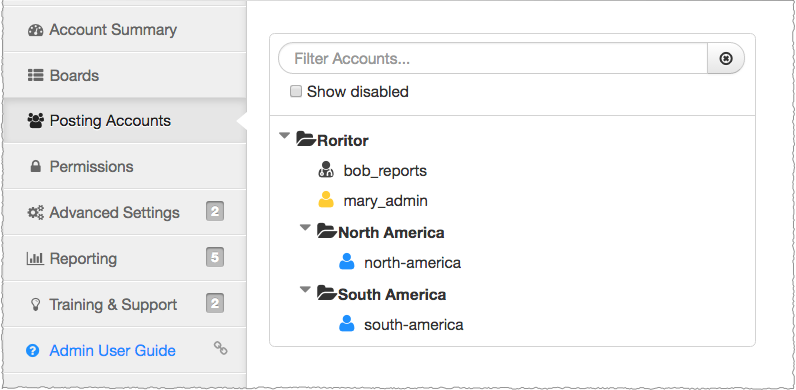
More About Permissions
Admin Account
Admin accounts can only be set up by the eQuest support team.
Admins have full control over their eQuest Admin system with the ability to:
- add/modify board accounts
- create Posting Accounts and Subgroups
- set board Permissions, etc
We suggest a single admin per account, however, up-to-5 admins is acceptable in certain cases.
Posting Account
A Posting Account is restricted to job posting activity. Once set up, your Posting Account credentials must be stored within your ATS — those credentials are then passed over in the job requests so we can authenticate the user and determine which job board options to present.
Reporting Account
A Reporting account can only access the Reporting and Account Summary sections.
ATS-Administrator
An ATS Administrator account access the company's that are linked to their ATS. This is used in limited cases where the ATS has an agreement to administer on their clients behalf. These account must be set up by eQuest.
Subgroup Folder
Subgroups are useful when you want to clean up your Posting Account tree and classify Accounts by region, brand, etc. Job board Permissions can be set at the Subgroup level and inherited by the accounts within that Subgroup. The 'Add Subgroup' option can be found just to the right of the 'Add Posting Account' button (see screenshot below).
Adding Posting and Reporting Accounts
To add a new Posting or Reporting account, go to the Posting Accounts selection and select the root group (or a Subgroup). Then select the 'Add Posting Account' button in the menu.
Next, click the 'Add Account' button and then select the Posting or Reporting option from the Role drop down. Enter all of required fields and then click 'Save'.
New Account Setup Fields
- Username - must be unique. Email is often used if setting up individual accounts
- Password - account password
- Company Name - this will not be passed to the job boards
- Account Name - this is an account label that will be displayed in the eQuest activity report
- Account Email - used for eQuest job posting confirmations when turned on in preferences
- Apply Email - used when a board does not accept an apply URL
- Group - the area of the user tree you would like the account added into
Note: if you leave the Password field empty, the Reporting account owner can establish their own password. This is technically true for Posting accounts as well but since you're generally going to store the account credentials within the ATS configuration it usually makes sense to establish the password for Posting Accounts here in the Admin "Add Accounts" section.
Binding Your ATS User to the Posting Accounts
eQuest Enterprise posting accounts are generally linked to your ATS system via the account username and password.
Additional Information
- Inherited values from the root group/subgroup will be displayed with an option to override
- If you would like to add more than one account, click the 'Add Account' button multiple times
- Username must be unique across the eQuest system, not just within your company
- When beginning setup, the root group (top-level group) will be the only option in the Group picklist. If you've added Subgroups, those will be options as well. The selected Group/level is where each Posting account will be added unless you override during setup.
- The new account will inherit the job board Permissions of the group it's added into.